Type 0 vs Type 1 MIDI: How to Split a MIDI Into Tracks
Cihad Turhan6 min read
A Type 0 MIDI file stores every part on a single track, while a Type 1 MIDI file keeps each part on its own track. To split a MIDI into tracks, open it in a DAW, separate the notes by MIDI channel so each instrument gets its own track, and export the result as a Type 1 file.
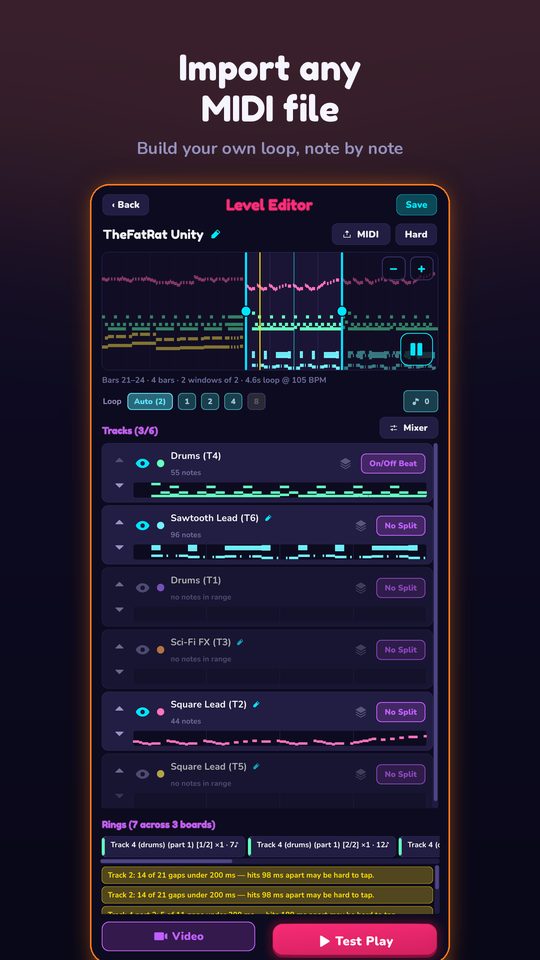
The difference sounds like a technicality until you import a file into a tool that cares about tracks. RingLoop's level editor is one of them: it makes one ring per MIDI track. A Type 1 file with drums, bass, chords and melody on separate tracks becomes four rings you clear one by one. The same song saved as Type 0 becomes a single ring with everything crammed into it. This guide explains the formats, how to check which one you have, and how to fix a Type 0 file.
Type 0 vs Type 1 at a glance
The MIDI Association, which maintains the MIDI standard, describes the Standard MIDI File formats like this: a Type 0 file contains a single track carrying all 16 MIDI channels, and a Type 1 file can contain multiple tracks, with individual parts saved on different tracks. A Type 2 format was also specified, but it never really caught on.
| Type 0 | Type 1 | |
|---|---|---|
| Tracks | One | Several |
| Where parts live | All merged into one track, told apart only by MIDI channel | Each part on its own track |
| In RingLoop | One ring | One ring per track |
The key detail is that a Type 0 file hasn't lost the separate parts. The notes for each instrument are usually still tagged with their own MIDI channel, which is what makes splitting possible.
Why tracks matter for a looping video
In RingLoop, every song is a set of concentric rings, and clearing a ring adds its instrument to the mix. The track layout of your MIDI file decides how that build-up plays out:
- More tracks, more layers. Each track becomes a ring and a separate layer of the build-up, so viewers hear the song assemble part by part.
- One track, no build-up. A single ring holding every instrument means the whole arrangement arrives at once.
- Unbalanced tracks. One very busy track next to several sparse ones makes one ring much harder than the rest.
For the full import-to-render walkthrough, see how to turn a MIDI file into a looping music video. This post focuses on getting the file right before that first step.
How to tell which format you have
You don't need a special tool. Try these in order:
- Open it in a DAW or notation program. If every instrument appears on one track, treat it as Type 0. If you see a separate track per instrument, it's Type 1.
- Check the file info. Some MIDI editors and players show the format number in a file properties or info panel.
- Import it into RingLoop. If a song you know has several instruments shows up as a single ring, the file has only one track.
One trap: a Type 1 file can still have every part on one track if whoever made it recorded everything that way. The fix is the same as for Type 0.
How to split a Type 0 file into tracks
Most DAWs can separate MIDI by channel. Apple's Logic Pro documents it clearly in its guide to demixing MIDI regions:
- Import the MIDI file so it sits on a track as one region.
- Select the region, then choose Edit > Separate MIDI Events > by Event Channel. You can also Control-click the region and choose MIDI > Separate by MIDI Channel.
- Logic creates a separate region for every MIDI channel it finds, each on a track matching that channel, adding new tracks if needed.
- Check that each instrument now has its own track, then export the project as a MIDI file.
Other DAWs have similar "split by channel" or "explode" commands under different names, so check your software's manual for the exact menu.
If you work in MuseScore, the free notation program, it can export any score as MIDI through File > Export, as described in its file export handbook page. That is a convenient route when you're entering a public-domain piece from sheet music yourself. Open the exported file in your DAW to confirm each part landed on its own track.
When splitting by channel isn't enough
Sometimes two parts share both a track and a channel, such as both hands of a piano piece. Take Bach's Invention No. 8 in F major: the right and left hands play two independent lines, but a simple piano MIDI may carry them together. Channel splitting won't separate them. You have two options:
- In your DAW, split the notes by pitch range or move one hand's notes to a new track by hand.
- In RingLoop, import the file as it is and use the level editor to split dense parts across rings.
Pre-import checklist
Run through this before you import a file:
- Each instrument you want as a ring sits on its own track.
- Empty tracks and leftover conductor or title tracks without notes are removed, if your editor shows them.
- No single track is far denser than the rest. If one is, plan to split it across rings.
- The drums are on their own track, so the beat becomes its own layer.
- The tempo matches the original performance; a wrong tempo makes the test-play feel off.
- You have the rights to post the music. Public-domain compositions are a safe start, but a specific MIDI arrangement can have its own license, so check it.
Once imported, adjust the mix per ring, then test-play and tune the difficulty until the level feels fair.
If you want multi-track files to practice on, Marble Music (formerly Beat Bounce) hosts a library of more than 1,100 free MIDI files. Download a few, open them in your DAW to check how many tracks each has, and you'll quickly build a feel for which files will give you a rich set of rings.
Import your first split file
Pick one Type 0 file, separate it by channel, export it as Type 1, and import it into RingLoop's level editor. Count the rings, play them one by one, and listen to the song build. Get the app from the RingLoop home page.
Frequently asked questions
- How do I know if a MIDI is type 0 or type 1?
- Open it in a DAW or notation program and count the tracks. If every instrument arrives on a single track, it is almost certainly Type 0; if each part lands on its own track, it is Type 1.
- Why does my MIDI import as one ring?
- RingLoop makes one ring per MIDI track, so a file with only one track gives you one ring. That usually means it is a Type 0 file, or a Type 1 file where every part was recorded onto the same track. Split it by channel in a DAW and save it as Type 1 before importing.

Get RingLoop
Free to play on iPhone, iPad and Android. Import your MIDI, clear the rings and render the loop as a video.