How to Turn a MIDI File into a Looping Music Video for Reels and Shorts
Cihad Turhan4 min read
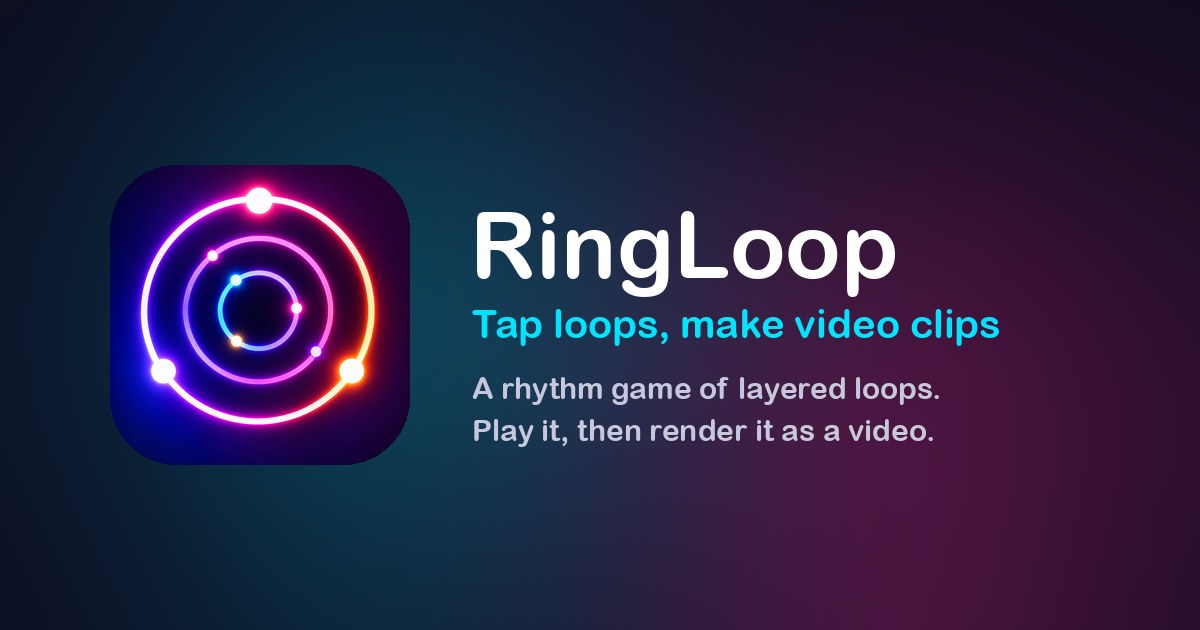
Short-form video loves a loop. A clip that ends exactly where it began keeps playing without a visible cut, and a song that builds layer by layer gives people a reason to stay until the end. RingLoop was made for exactly that kind of clip: every song is a set of concentric neon rings, and each ring you clear adds its instrument to the mix, like a loop station.
This guide walks through the whole process, from finding a MIDI file to posting a finished loop on Reels, Shorts or TikTok.
Why looping videos work on Reels and Shorts
Two things make a loop a good fit for short-form feeds.
Seamless replays. Reels and Shorts replay a video automatically when it ends. If the last frame flows straight into the first, viewers often don't notice the restart and keep watching, which counts as extra watch time for your clip.
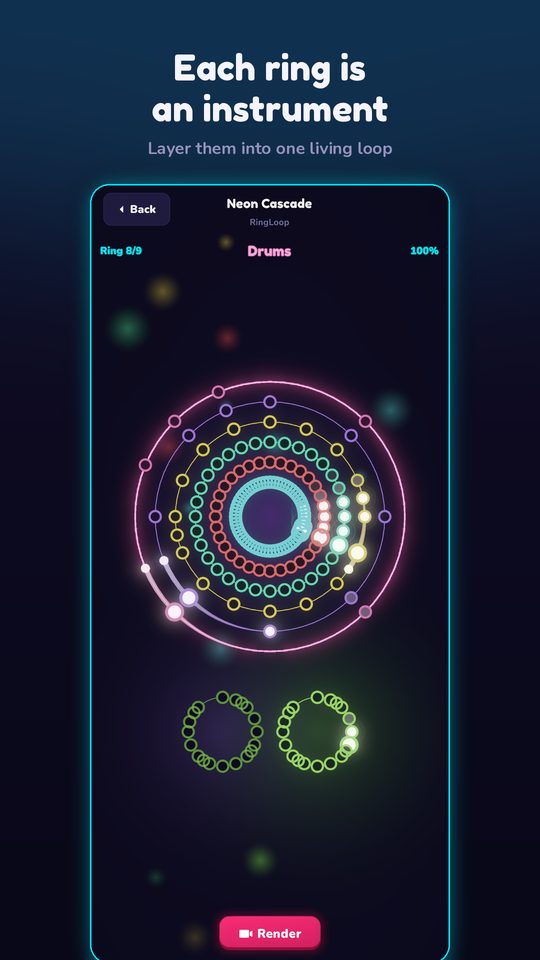
The satisfying build-up. In RingLoop the song assembles itself in front of you: bass, hats, lead, one layer at a time. By the last ring the whole arrangement is playing and the rings are turning together. That slow reveal is the hook. People want to hear what the full loop sounds like, so they wait for it.
Step 1: Get a MIDI file
A MIDI file stores notes, not audio, which is why RingLoop can turn it into a playable level. Some good sources:
- Your own music. Most music software can export a MIDI file of your project. This is the best option if you want to post original work.
- Notation software. If you write sheet music, you can usually export the score as MIDI.
- Public-domain melodies. Classical pieces are a natural fit; RingLoop's own soundtrack includes classical melodies remixed into neon.
Because RingLoop makes one ring per MIDI track, a file where each instrument sits on its own track gives you the most interesting result: a separate ring, and a separate layer in the mix, for every part. If you plan to post publicly, use music you wrote or music you have the rights to share.
Step 2: Import it into the level editor
Open the level editor and import your MIDI file. RingLoop splits it into rings, one per track, and each ring becomes a layer you clear by tapping its notes in time.
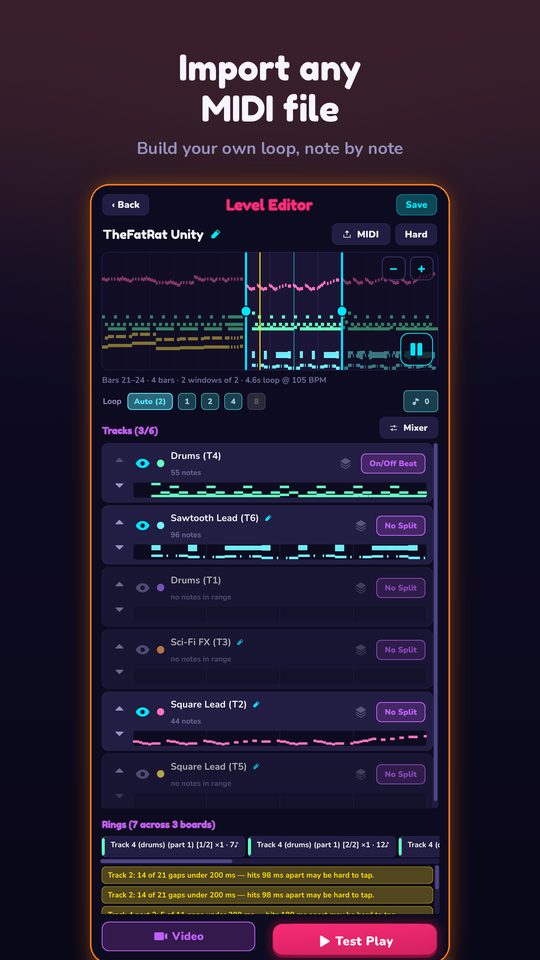
Before you record anything, tune the level:
- Adjust the mix per ring. Balance the instruments so the melody sits on top and the bass doesn't drown everything else.
- Split dense parts across rings. A busy piano part or a fast drum pattern can be spread over more than one ring, which makes it fairer to play and more fun to watch.
- Test-play and tune the difficulty. Play through the level yourself. Notes fall in lanes, and a comet lights each bead at the note times. Miss one and the loop breaks, so make sure the timing feels right before you render.
Every instrument is synthesised on your device from a real SoundFont, and everything works offline, so you can build and test levels anywhere.
Step 3: Play it ring by ring
Clear the rings one after another and listen to the song stack up. Ring after ring, the song builds itself, and by the last one you are hearing the whole arrangement.
Step 4: Render the video
One tap renders any loop to a video and saves it straight to your camera roll, ready to post. Pick the format that matches where it's going:
- Portrait for Reels, Shorts and TikTok.
- Landscape for YouTube.
- Resolution from 720p up to 4K.
- Perfect loop for seamless repeats. Turn this on for Reels and Shorts so the end of the clip flows back into the start.
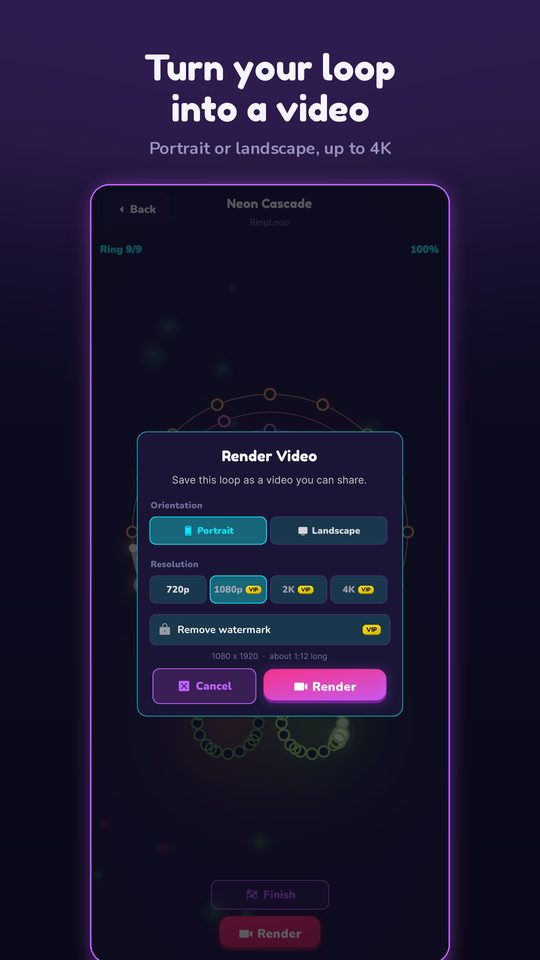
RingLoop is free to play. VIP unlocks larger renders and watermark-free videos if you want the cleanest possible upload.
Step 5: Posting tips
- Hook in the first second. Start with the rings already visible so viewers know right away what they are looking at.
- Let the build-up pay off. Keep the clip long enough for the full arrangement to play. The moment every layer joins in is the payoff.
- Keep the loop seamless. Use the perfect loop option and don't trim the start or end afterwards, or you'll reintroduce the jump.
- Name the song. Put the track name in the caption or on screen. People who recognise a melody are more likely to comment.
- Match the format to the platform. Portrait for Reels, Shorts and TikTok; landscape for a YouTube video.
- Post a series. Every MIDI file is a new level, so one song a day turns into a steady stream of clips.
Make your first loop
Pick one MIDI file you love, split it into rings, clear them, and render a perfect loop. One tap later, it is on your camera roll and ready to post.
Frequently asked questions
- Can I use any MIDI file in RingLoop?
- Yes. The level editor imports any MIDI file and splits it into rings, one per track. You can adjust the mix per ring, split dense parts across rings, then test-play and tune the difficulty.
- What video formats can RingLoop render?
- Portrait for Reels and Shorts or landscape for YouTube, from 720p up to 4K. The video saves straight to your camera roll. VIP unlocks larger renders and watermark-free videos.
- What does the perfect loop option do?
- It renders the clip for seamless repeats, so when Reels or Shorts plays the video again, the end flows straight back into the start.
Get RingLoop
Free to play on iPhone, iPad and Android. Import your MIDI, clear the rings and render the loop as a video.