Twinkle Twinkle in Rings: Mozart's Variations as Layers
Cihad Turhan5 min read
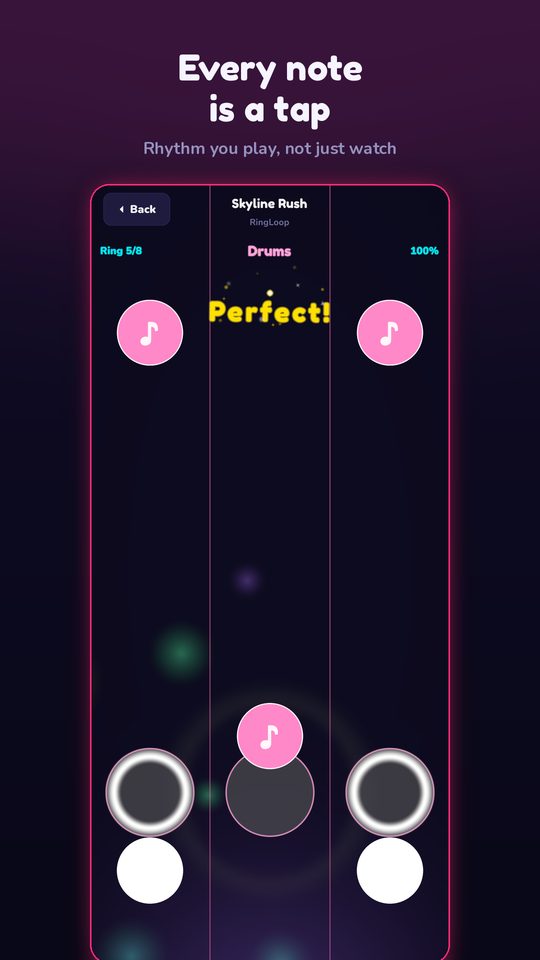
Mozart's 12 Variations on "Ah vous dirai-je, Maman" are a set of piano pieces built on the tune English speakers know as Twinkle Twinkle Little Star, and they make a clear, playable demo of melody versus accompaniment. Import a two-hand MIDI of the theme into RingLoop, put the right-hand tune and the left-hand accompaniment on separate rings, and you can hear the melody alone first, then the full piano texture arrive.
That makes it one of the friendliest classical pieces to build as a loop. Almost everyone already knows the tune, so viewers and younger players recognize it instantly, and the piece itself is about adding layers around a simple melody.
A folk tune, a poem and Mozart
Three separate things got attached to one melody:
- The tune. "Ah! vous dirai-je, maman" is a French melody that, according to Wikipedia's article on Mozart's variations, first appeared in 1761.
- The variations. Mozart wrote his twelve piano variations on it when he was around 25, in 1781 or 1782, and they were first published in Vienna in 1785, per the same article.
- The English words. "Twinkle, Twinkle, Little Star" comes from Jane Taylor's poem "The Star", published in 1806, which was later sung to the French melody, as described in Wikipedia's article on the song.
So Mozart didn't write Twinkle Twinkle. He took a tune that was already popular and showed how much could be built on top of it. The theme, its variations and the traditional English lyrics are all in the public domain.
Why variations are a lesson in layers
A theme and variations keeps the tune recognizable while changing everything around it. In Mozart's set, the variations take turns giving one hand fast running notes while the other holds the tune, trading the melody between the hands, adding ornaments, and changing the mood. One variation moves into a minor key, and the last two carry the only tempo markings, Adagio and Allegro.
Listening for the difference between the two hands is exactly the skill this teaches:
| Layer | What it does in the theme | What to listen for |
|---|---|---|
| Right hand (melody) | Plays the tune note for note | The line you could sing along to |
| Left hand (accompaniment) | Supports the tune with a lower line | Lower notes that change with the harmony |
| Both together | The full piano texture | How the left hand makes the tune sound complete |
Once you can hear that split in the theme, every variation becomes easier to follow, because you can track which hand is carrying the tune.
Build it as a ring-by-ring level
1. Find a two-track MIDI
RingLoop creates one ring per MIDI track, so you want a file where the right and left hands are on separate tracks. Good places to look:
- The Marble Music MIDI library, which hosts more than 1,100 free MIDI files, including classical pieces.
- The Mutopia Project, which publishes public-domain scores and MIDI files.
- IMSLP for the score itself, if you want to check what each hand plays.
Mozart's composition is public domain, but a particular MIDI arrangement may not be, so check the license of the file you use.
2. Keep it short
The theme alone is a short piece, which is ideal for a loop. If your file contains the whole set, trim it to the theme, or to the theme plus one contrasting variation, before you import.
3. Import and arrange the rings
Import the file in the level editor and check that the hands landed on separate rings. Then:
- Put the melody first. The tune is the hook, so let it play alone on the first ring. Viewers recognize it immediately.
- Bring in the accompaniment next. Clearing the second ring adds the left hand, which turns a single line into a full piano part.
- Split dense passages. If you include a variation with running notes, split the busy hand across two rings so it stays playable.
- Adjust the mix per ring. Keep the melody slightly louder than the accompaniment so the tune stays clear on a phone speaker.
If you have never imported a MIDI file before, the guide to turning a MIDI file into a looping music video walks through the full flow.
4. Test-play and tune the difficulty
For a kid-friendly loop, tune the level so it is relaxed and easy to clear on camera. RingLoop has no timers, lives or energy, so a slower player can take their time between attempts.
Render a family-friendly loop
Render in portrait for Reels and Shorts, and turn on the perfect loop option so the end of the tune flows back into its start, which suits a melody this circular. You can render from 720p up to 4K, and videos save to your camera roll.
Caption ideas that name the piece and the twist:
- "Twinkle Twinkle, but it's Mozart, built one hand at a time."
- "Melody first, then the left hand. Mozart's variations on a 1761 French tune."
To take the same tune further, Note Bounce lands bouncing balls on real sheet music. Twinkle Twinkle moves mostly by step and repeated notes, which makes it one of the easiest melodies to read on the staff, and Note Bounce's MIDI import lets you build a level from the same file. It's a gentle next step from hearing the melody to reading it.
Play the theme today
Find a two-track MIDI of the theme, import it, and set the melody as the first ring. Play it once just listening to the right hand, then clear the second ring and notice how the left hand changes the sound. When that feels easy, add one of Mozart's busier variations as extra rings and hear how far he took a tune that started as a simple folk song.
Frequently asked questions
- Did Mozart write Twinkle Twinkle Little Star?
- No. The melody is a French folk tune, "Ah! vous dirai-je, maman", that first appeared in print in 1761. Mozart wrote a set of 12 piano variations on it around 1781 or 1782, and the English words come from a separate poem by Jane Taylor.
- What is a theme and variations?
- It is a form in which a composer states a simple tune, the theme, and then repeats it several times with changes to the rhythm, harmony, accompaniment or mood. The tune stays recognizable while everything around it changes.

Get RingLoop
Free to play on iPhone, iPad and Android. Import your MIDI, clear the rings and render the loop as a video.