Turn Your Own Beat Into a Playable Loop Video
Cihad Turhan6 min read
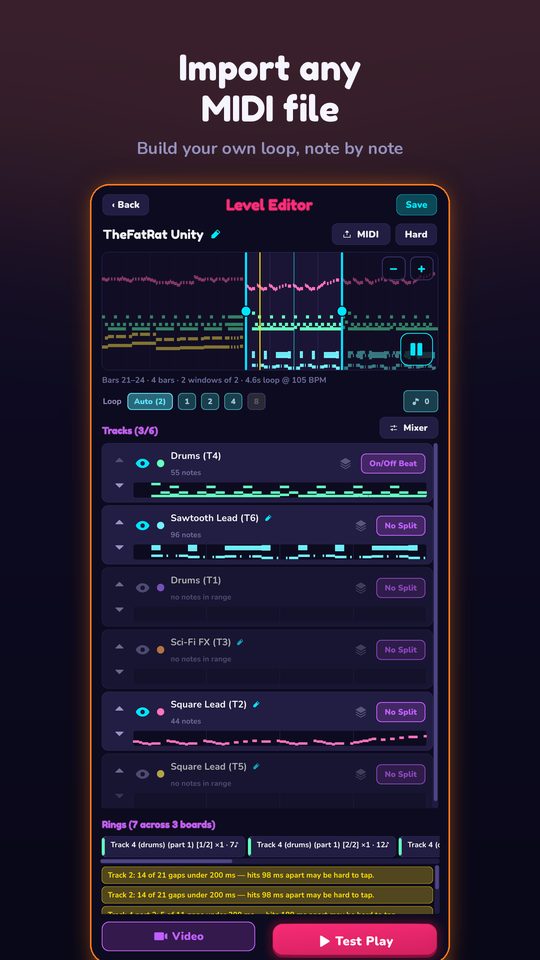
To turn your own beat into a loop video, export its notes from your DAW as a multi-track MIDI file with one track per instrument, import it into RingLoop's level editor so each track becomes a ring, balance the rings, and render a portrait clip. Each part enters as a ring is cleared, so the video shows your arrangement being built piece by piece, which works well as a teaser for a release.
This is a different kind of promo clip from a lyric video or a waveform visualizer. Viewers watch your beat being assembled, and the payoff is the full mix you made. Below is the producer-specific workflow: how to prepare the session, how to export from three common DAWs, what to expect from the sound, and a simple release-week plan.
Before you export: prep the session
RingLoop creates one ring per MIDI track, so the way you organize your DAW session decides how the video unfolds. Spend ten minutes on this first.
- Pick an 8 or 16 bar section. Use the hook or drop, not the intro. A short section makes a tight clip and a clean loop.
- One instrument per track. Merge doubled layers (two synths playing the same chords) into one track. Split a drum rack or kit into kick, snare and hats only if you want each to be its own ring.
- Aim for four to six tracks. Each one is a ring the player has to clear, so too many tracks make for a long build-up before the payoff.
- Order the tracks the way you want the build. Drums or bass first and the lead last is a common choice, because the melody lands as the reward.
- Remove audio-only parts. Vocals, samples and recorded loops have no MIDI notes, so they won't appear. If a sample carries the hook, play its melody into a MIDI track instead.
Export the MIDI from your DAW
The goal is a standard MIDI file that keeps your parts on separate tracks, often called a Type 1 or Format 1 file.
| DAW | Where to find it | Notes |
|---|---|---|
| Logic Pro | Select the regions, then File > Export > Selection as MIDI File | Apple's guide says the regions are saved as a Format 1 MIDI file. It also recommends joining each track's regions into one region first. |
| FL Studio | File > Export > MIDI file | Image-Line documents MIDI as one of the project export formats. For a single pattern, the piano roll can also save its contents as a .mid file. |
| Ableton Live | Select a clip, then File > Export MIDI Clip | This writes one clip as a single-track file, as Sound on Sound explains. Export each part separately and assemble them on separate tracks in an app that saves multi-track MIDI. |
Whatever you use, open the exported file once in any MIDI player or notation app and check that every part is there and on its own track before you move it to your phone.
Import it and tune the rings
Move the .mid file to your iPhone, iPad or Android device, open RingLoop, and import it in the level editor. The general import and render flow is covered step by step in the guide to turning a MIDI file into a looping music video, so here is only what matters for your own track:
- Check that each part became its own ring. If everything landed on one ring, your export merged the tracks; go back and export a multi-track file.
- Adjust the mix per ring. Your DAW mix doesn't carry over, so set the balance again by ear. Bring the bass and the lead forward so the hook is clear on a phone speaker.
- Split dense parts. A busy hi-hat or arpeggio track can be split across rings so it is playable and enters in stages.
- Test-play and tune the difficulty. You want a clean run on camera, so keep it comfortable unless the challenge is the point of the clip.
What it will and won't sound like
Be clear with yourself, and your audience, about one thing: RingLoop doesn't play your samples or your mix. Every instrument is synthesised on the device from a real SoundFont, so your notes come back with different tones. Your chords, rhythms and melody are all there, but the sound design isn't.
That works in your favor as long as the caption frames it honestly. A line such as "my new track, rebuilt ring by ring in a rhythm game, full version in bio" tells people they are seeing a remix of the notes and gives them a reason to go hear the real thing.
Render and post during release week
Render in portrait for Reels, Shorts and TikTok. You can render from 720p up to 4K and turn on the perfect loop option so the end flows back into the start. Videos save to your camera roll. Free renders carry a watermark and VIP unlocks larger renders and watermark-free videos, so decide which you need before release day.
A simple plan that reuses one session:
- Three days before release: post the full build-up with the release date in the caption.
- Release day: post the last ring only, so the whole hook hits in the first seconds, with "out now" on screen.
- Two days after: post the build-up again in landscape for YouTube, or a version with a different ring order.
Keep the link to the full song in your bio and mention it in the caption, since that is where interested viewers will look. None of this guarantees streams; it gives each post a clear reason to exist.
For a second teaser from the same session, try Marble Music (formerly Beat Bounce). Import the lead melody track through its level editor's MIDI import and a marble bounces on every note, rendered in up to 4K for the same platforms. It gives you a different visual for the same hook, so you can post both and see which one your audience prefers.
Make your first teaser
Open your latest project, pick the hook, and reduce it to four to six MIDI tracks in the order you want them to appear. Export, import into RingLoop, balance the rings, and render one portrait clip today. Post it ahead of your next release and keep the session saved, so every new track can get its own ring-by-ring teaser.
Frequently asked questions
- How do I export MIDI from my DAW?
- Most DAWs have a MIDI export in the File menu. Logic Pro uses File > Export > Selection as MIDI File, FL Studio uses File > Export > MIDI file, and Ableton Live exports one clip at a time with Export MIDI Clip.
- Will the video use my exact sounds?
- No. RingLoop plays your notes with instruments it synthesises on the device from a SoundFont, so the clip is a reimagined version of your track rather than your mixed audio.
Get RingLoop
Free to play on iPhone, iPad and Android. Import your MIDI, clear the rings and render the loop as a video.