Dance of the Little Swans: A Four-Ring Loop, Already Split
Cihad Turhan5 min read
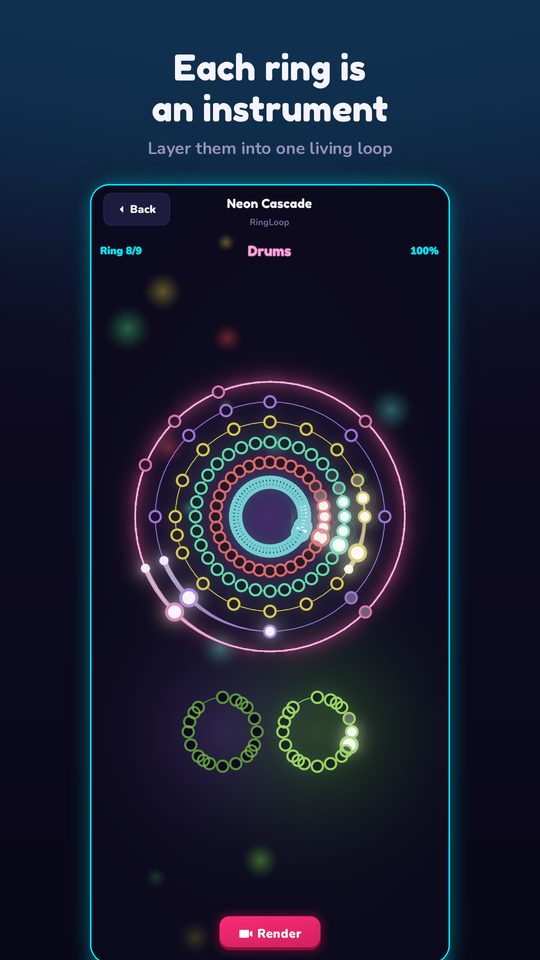
To make a Dance of the Little Swans loop video, import a MIDI that already keeps each instrument on its own track, so RingLoop's level editor turns it into four rings with no splitting. Then order the rings so the bouncing bass comes first and the flute's tune arrives last, and render a portrait clip with the perfect-loop option on.
Most free classical MIDIs are two-track piano arrangements, so you spend time carving one hand into extra rings. This one is different, and it's a good first project if you want a full-sounding level with as little editing as possible.
A file that's already split by instrument
The file is Swan_Lake_-_Dance_of_the_little_swans_for_piano_flute_and_oboe.mid, from the free MIDI library on playmarblemusic.com. As the name says, it's arranged for flute, oboe and piano, and the piano's two hands sit on separate tracks. Since RingLoop makes one ring per MIDI track, that's four rings straight from the import.
Here is what each track does, in the order the file brings them in:
| Track | Enters | What it plays |
|---|---|---|
| Piano, left hand | Bar 1 | A bouncing bass that alternates F sharp and C sharp on every eighth note |
| Flute | Bar 2 | The famous tune, starting on repeated A's |
| Oboe | Bar 2 | The tune's rhythm, mostly a third or an octave lower, starting on F sharp |
| Piano, right hand | Bar 4 | Short chord figures that fill in the harmony |
The file is in 4/4 at 100 beats per minute, slowing at the very end, and runs about a minute and a half. Tchaikovsky's composition is in the public domain, but this arrangement is someone's work, so check its license before you post.
The tune is a duet
The table shows the most useful detail for planning rings: the flute and oboe move together in almost exactly the same rhythm. The oboe mostly sits a third or an octave below the flute, and it opens a third below (F sharp under A). That doubling is why the tune sounds sweet and full rather than thin, and it's easy to hear once you know to listen for it.
That gives you a choice a single-melody piece doesn't. You can let the oboe arrive first, so viewers hear the tune in a slightly muted, lower voice, and then let the flute land on top as the last ring. When the flute joins, the melody suddenly brightens and "opens up". It's a small payoff, but it makes the final ring feel earned.
Plan the ring order
The file's own entry order (bass, both winds, then piano chords) is a performance order, not the best build-up order. For a loop video, try this instead:
- Ring 1: piano left hand. The bouncing F sharp and C sharp bass sets the tiptoeing pulse right away. It's recognizable as "something from a ballet" without giving the tune away.
- Ring 2: piano right hand. The chord figures add harmony and a bit of sparkle on top of the bass.
- Ring 3: oboe. The melody appears for the first time, in the lower voice. Many viewers will place the tune here.
- Ring 4: flute. The top third arrives, the duet is complete, and the full arrangement plays.
The idea is to hold back the brightest sound for last, rather than the most recognizable one. The oboe already gives away the tune on ring 3, so the flute's job on ring 4 is to make it shine.
Tune it in the editor
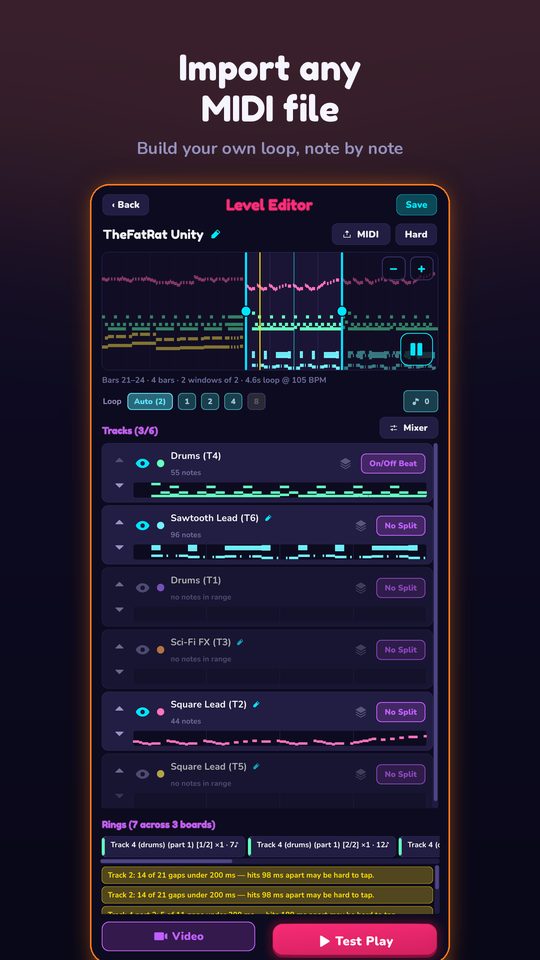
Even with the tracks already split, a few minutes in the level editor makes the clip better:
- Adjust the mix per ring. The bass plays nonstop eighth notes, so if it sounds too busy once all four rings are in, bring it down slightly and keep the flute clearly on top.
- Test-play the wind rings. The melody has quick ornaments, small grace-note flicks before some beats. They're the hardest notes to hit in time.
- Tune the difficulty until you can clear all four rings in one take. A clean run matters more than a hard one for this piece.
Every instrument is synthesised on your device from a real SoundFont, so the flute and oboe will sound like RingLoop's take on those instruments rather than a recording. It all works offline, too.
Render and caption it
When your run is clean, render it:
- Portrait for Reels, Shorts and TikTok, from 720p up to 4K.
- Perfect loop on, so the end flows back into the bouncing bass of bar 1.
- Landscape as a second render if you also post to YouTube.
The video saves to your camera roll. RingLoop is free to play and shows ads to non-VIP players. VIP unlocks larger renders and watermark-free videos. For a refresher on each render option, see how to turn a MIDI file into a looping music video.
For on-screen text, try "Listen for the moment the flute joins." In the caption, name the piece and composer: "Dance of the Little Swans, Tchaikovsky (Swan Lake). Four instruments, one ring at a time."
Note Bounce is a good companion if this piece makes you curious about how a duet looks on paper. It's a rhythm game where bouncing balls land on real sheet music, and its MIDI import lets you build custom levels. Seeing two lines move together a few steps apart is the quickest way to make "a third below" click.
Build your four rings
Download the file, open RingLoop, and import it. Four rings are waiting, and all you have to decide is which one gets the last word.
Frequently asked questions
- Where does the Dance of the Little Swans come from?
- It's one of the dances in Act II of Swan Lake, the ballet Pyotr Ilyich Tchaikovsky composed in 1875–76. The Bolshoi Ballet premiered it in Moscow in 1877.
- Do I need to edit this MIDI before importing it?
- Not necessarily. The file described here already has four separate instrument tracks, so it imports as four rings. You may still want to tune the mix and difficulty per ring.
Get RingLoop
Free to play on iPhone, iPad and Android. Import your MIDI, clear the rings and render the loop as a video.